
Local & in the cloud
Open existing files without importing them into a new database. Your chosen cloud service handles synchronization.
 Merkzeug
Mac · iPhone · iPad · Linux · IntelliJ IDEA
Explore and edit Markdown collections, then turn them into documents with your layout — from personal notebooks to documentation written by agents.
Open source under the MIT License. Explore the code and contribute on GitHub.
Available now. Windows coming soon. Android & VS Code planned.
01 / Start where you are
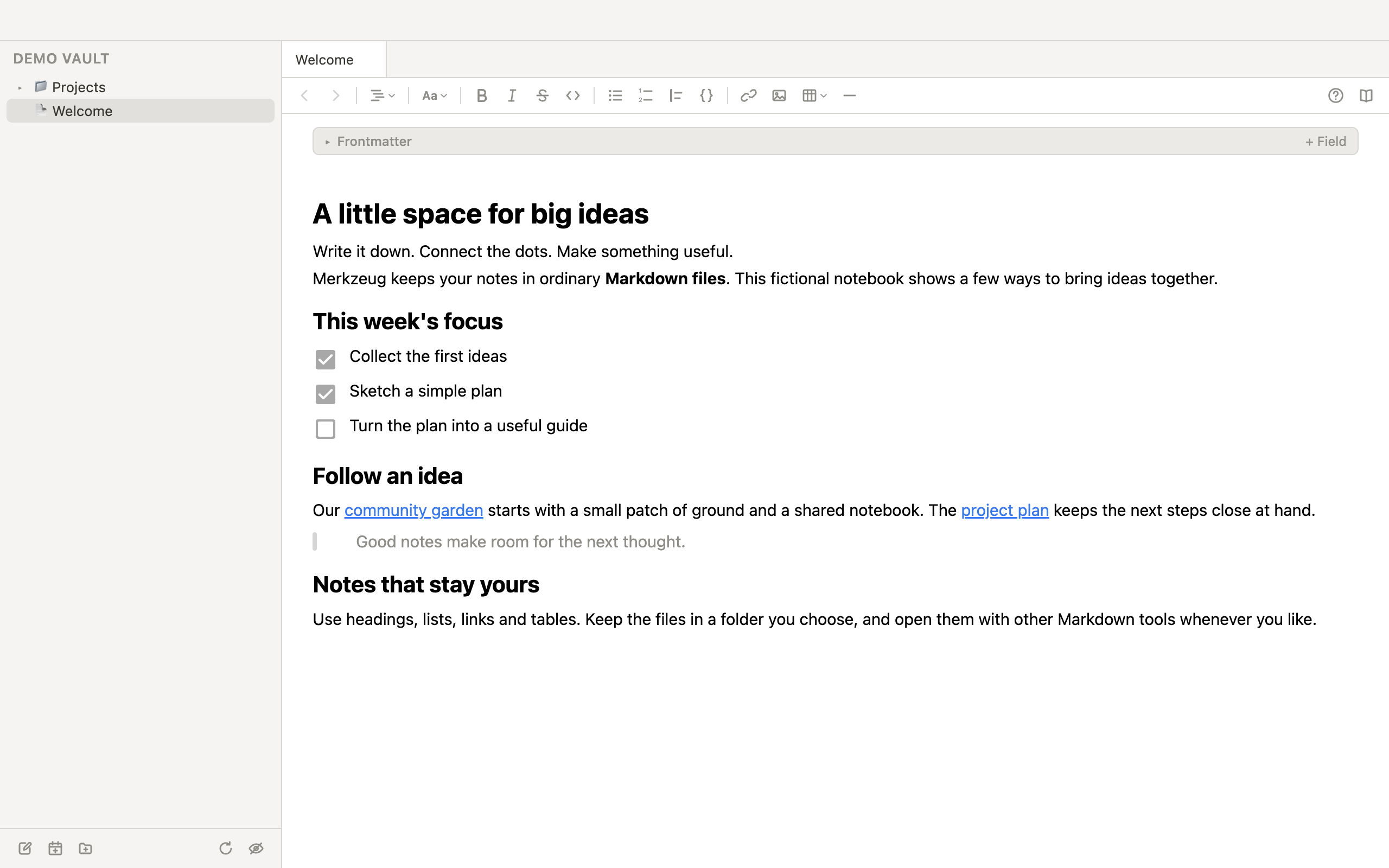
A vault is simply a folder of Markdown files. Your notebook, your cloud folder, or the documentation beside your code.
Open existing files without importing them into a new database. Your chosen cloud service handles synchronization.
Use repository folders on Mac and Linux or directly in IntelliJ. On iPhone and iPad, open your Git app’s repository folder through the Files app.
Markdown stays Markdown. Work on the same files with other editors, Git tools, and agents.
02 / Understand & develop
Edit headings, tables, and tasks visually. Mermaid diagrams live inside the document: edit the code, see the result, keep reading.
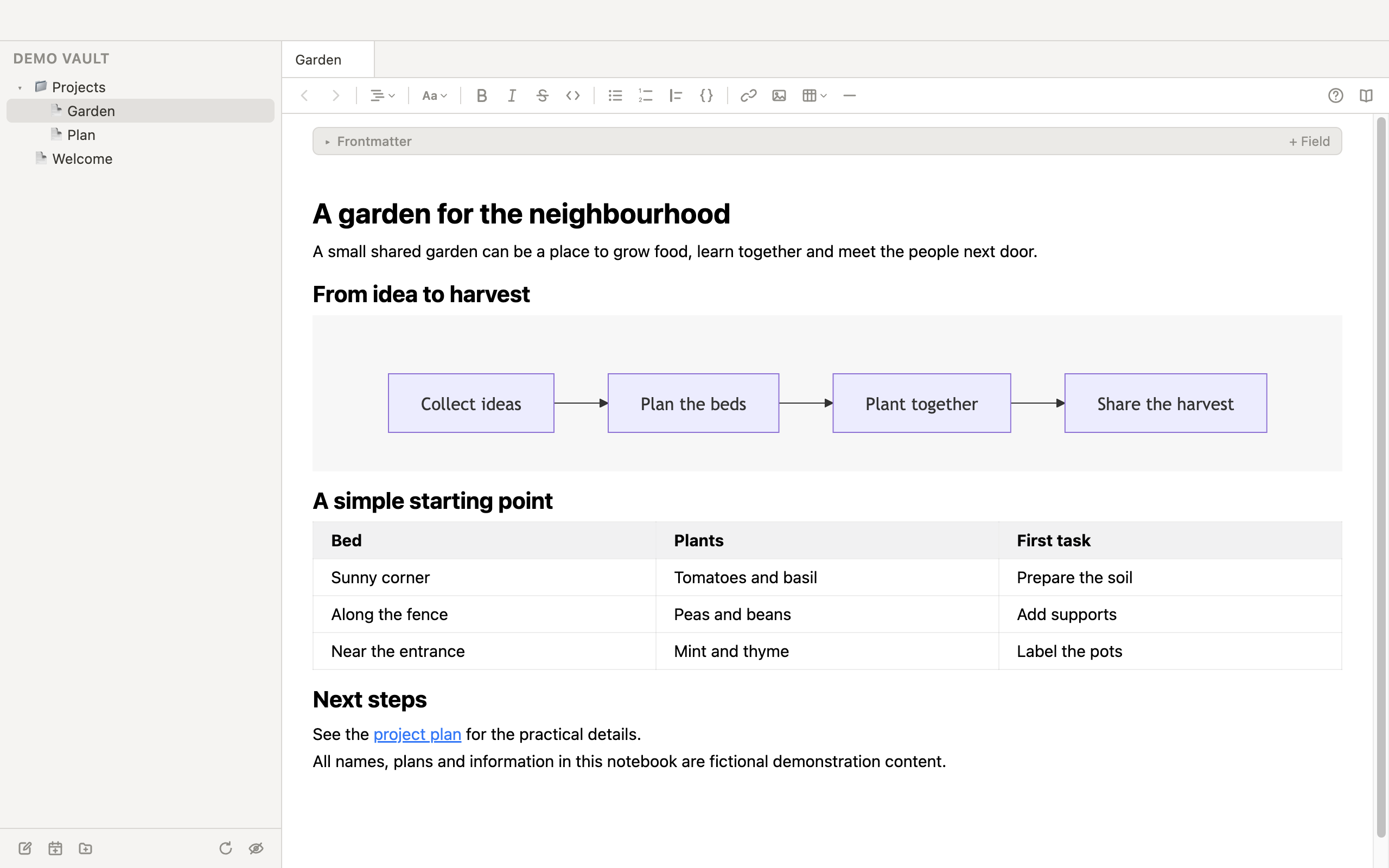
On Mac, Linux, iPhone, and iPad, follow links in reading mode without accidentally changing text. Switch back to the editor when you want to write.
Merkzeug works alongside other Markdown editors in IntelliJ. Use the editor tabs to switch between visual editing and source; linked files open through the IDE.
03 / From draft to delivery
Turn a collection of notes into a document for clients, teams, or your next meeting. With your letterhead, your typography, and your layout.
Use HTML/CSS templates while editing and when printing. Mac, Linux, iPhone, iPad, and IntelliJ also export PDF files with those templates.
On Mac, Linux, iPhone, iPad, and in IntelliJ, an overview document can include directly linked Markdown files from its own folder and subfolders in the export.
Sync templates between Apple devices through iCloud, or keep them inside your vault. Choose the location directly in the PDF controls; the shared assignment travels with your Git repository.
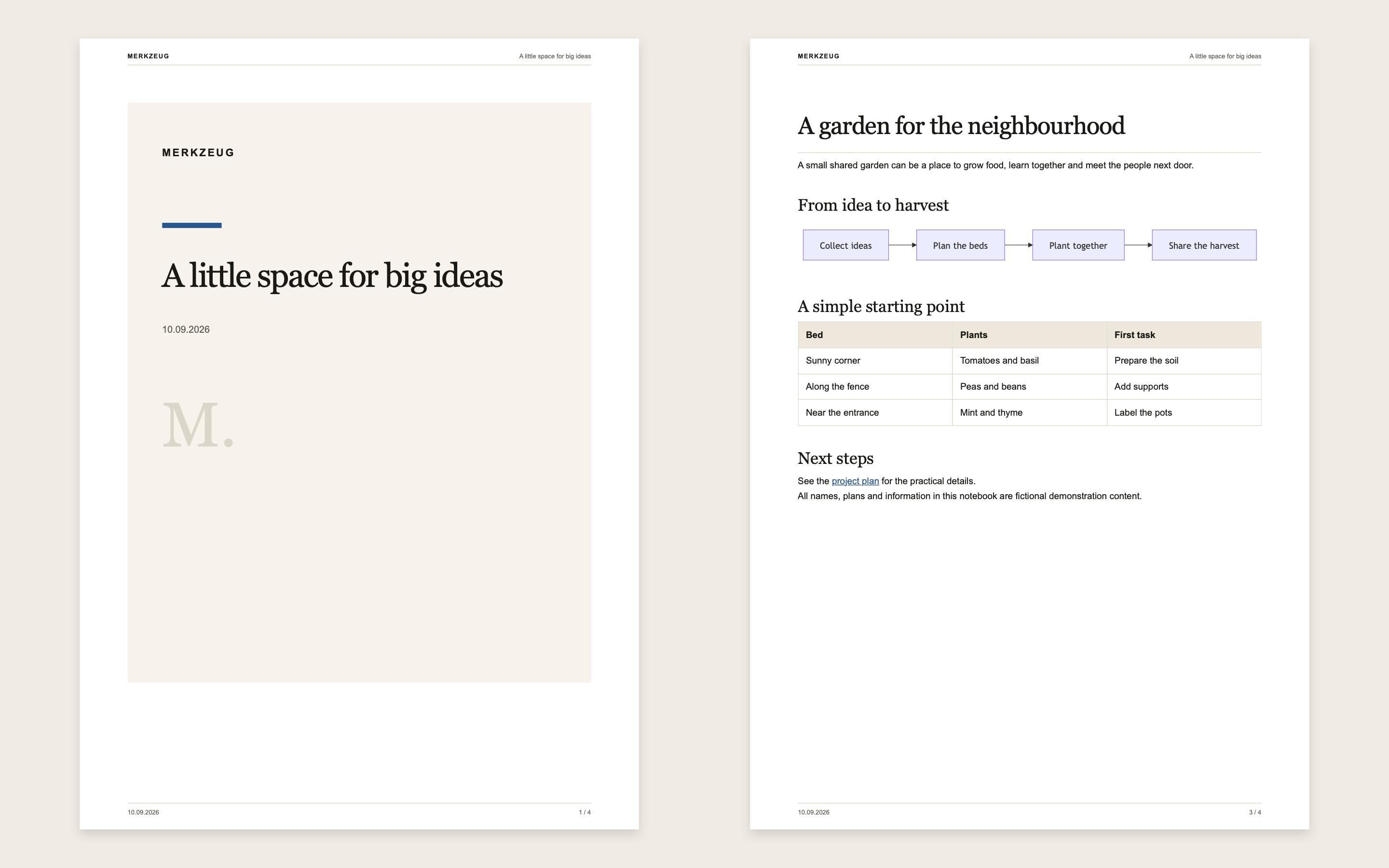
A real PDF output with example content, a cover, and formatted pages.
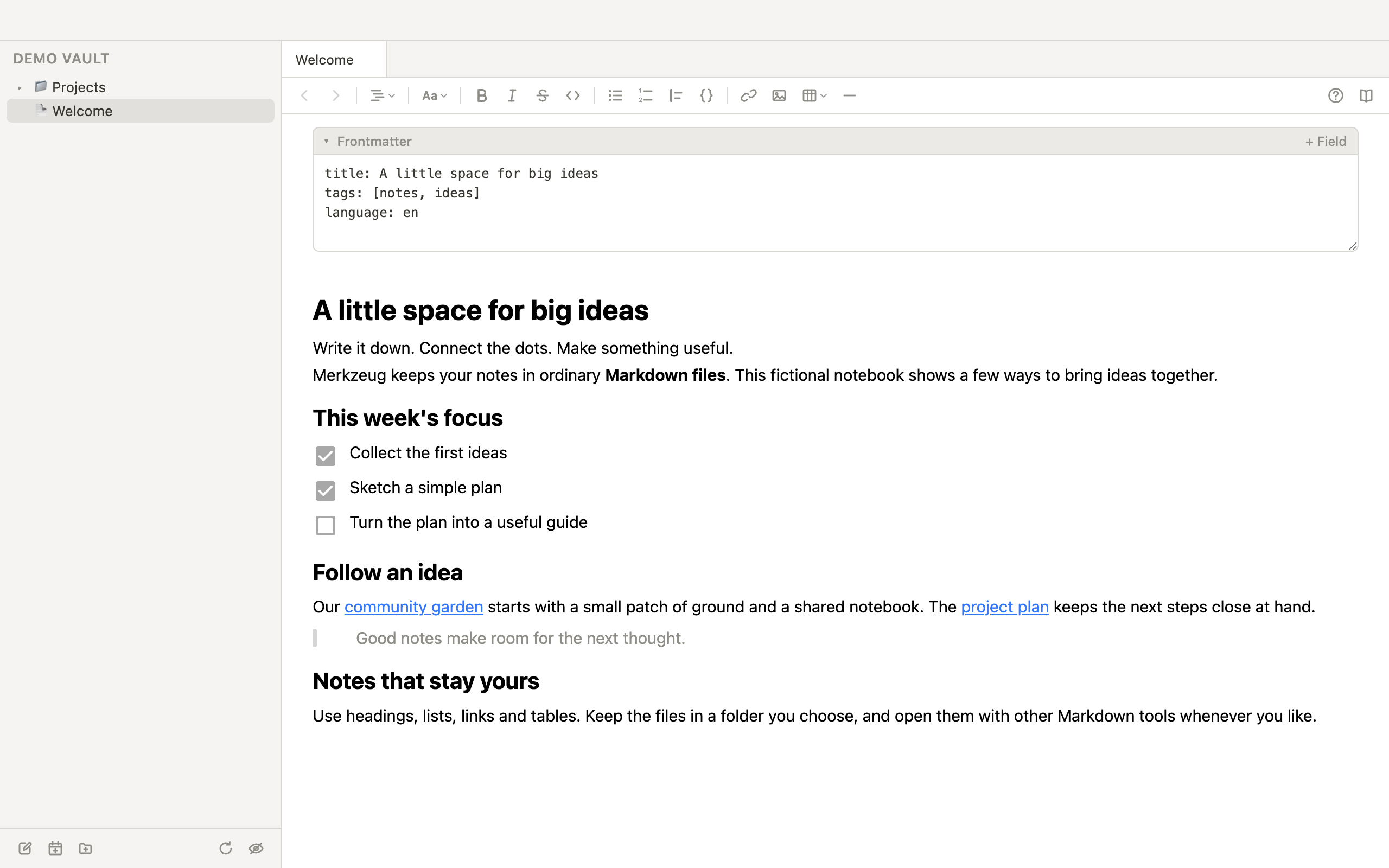
View the example output ↗Fine-tune exports with frontmatter: title, language, table of contents, and excluded notes. Your Markdown remains the source.
04 / Keep things together
Project.md
↔
Project.assets/
Inserted images live in a companion .assets folder. Move or rename a note with Merkzeug and its assets follow; references are updated.
On Mac and Linux, filenames can follow the first main heading. Meeting notes on Mac, Linux, iPhone, and iPad also follow their heading when it changes. IntelliJ retains control of filenames.
Merkzeug updates local Markdown links when notes are renamed or moved. The IntelliJ plugin also adds the asset rules to the IDE’s Move/Rename actions.
Make a readable collection out of agent-written Markdown files. Merkzeug helps you review, edit, and share the result.
Give your agent a template prompt with the file structure, available fields, and styling rules, so it can adapt a template to your visual identity.
Review the asset guidance and existing AGENTS.md / CLAUDE.md files. Choose which files receive the instructions. Merkzeug itself does not run agents.
For your everyday work, too
On Mac, iPhone, or iPad, choose an event and start with a title, time, and attendees instead of an empty page. On Linux, use ICS files or HTTPS/Webcal subscriptions. Your calendar stays unchanged. Personal notes and ideas need neither Git nor an agent.
Calendar sources & meeting notes →05 / Everywhere
Available for Mac, iPhone, iPad, Linux, and IntelliJ IDEA. Editions share the file format and visual editor, with integrations suited to each device.
| Feature | Mac | iPhone & iPad | IntelliJ IDEA | Linux |
|---|---|---|---|---|
| Visual editing & Mermaid | Yes | Yes | Yes | Yes |
| Reading mode | Yes | Yes | Planned | Yes |
| Template styles while editing | Yes | Yes | Yes | Yes |
| Export a PDF file | Yes | Yes | Yes | Yes |
| Print with a template | Yes | AirPrint | PDF preview | System print dialog |
| Linked notes in one PDF | Yes | Yes | Yes | Yes |
| Calendar & meeting notes | Yes | Yes | — | ICS / Webcal |
| Git-Workflow | Integrated | External Git app; Working Copy integration | IntelliJ | Installed Git client |
| Images & links on move/rename | Yes | Yes | IDE refactoring | Yes |
The guides explain requirements and differences in detail. Working Copy is a separate app. The IntelliJ plugin is available in the Stable channel. Linux calendars use ICS imports or HTTPS/Webcal subscriptions; private subscriptions need a system keyring. Git requires an installed Git client.
Coming soon — the next desktop edition.
Planned — no release date promised.
Linux · 1.2.1
Choose your processor architecture first, then the package for your distribution. Each download contains one architecture only. Updates are installed manually. If unsure, run uname -m: x86_64 means Intel/AMD, aarch64 means ARM64.
For ARM Linux, including Linux in Parallels on Apple Silicon Macs.
AppImage requires FUSE 2 and permission to use unprivileged user namespaces. On systems that restrict this, use DEB or RPM. DEB and RPM install through your package manager. Use local folders, Git repositories, or folders mounted by your sync provider; automatic iCloud discovery is not available on Linux.
Release Notes
Version 1.3 is being prepared. Read what is included; published updates will appear here as they become available.
Read the release notes